
The “SharePoint at 25” digital event has introduced an update in the platform’s architecture and user interface. This update, known as the new SharePoint experience, focuses on a refreshed UI and more AI integration. The preview is scheduled for release to all tenants on March 3rd, 2026.In this blog I’ll take you through how to enable this. If you have a demo, test or lab tenant I would suggest you try the new experience in there first, before applying this to your production tenant. There could be unexpected experiences that prevent your users from their regular work.
Visual Changes
The update replaces several legacy components with modern alternatives:
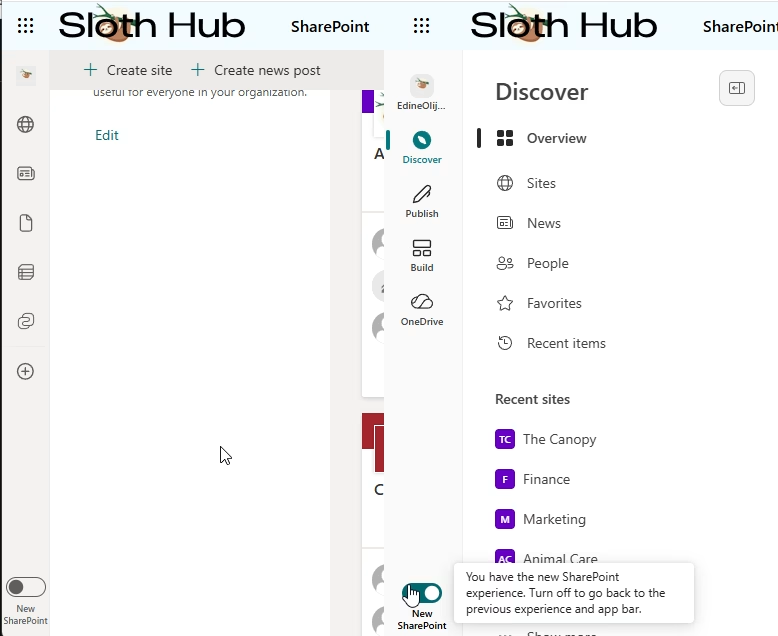
- Discover Experience: The standard SharePoint start page is replaced by a Discover interface, optimized for surface-level content delivery.
- Updated App Bar: The app bar now includes specific “Publish” and “Build” destinations. If a Home site is configured, the app bar will also render global navigation, including the organizational logo and name.
- Neutral App Theming: A consistent, neutral palette is applied across all SharePoint UI surfaces. This change is designed to ensure that customer branding and functional content remain the visual priority during both viewing and editing.
- Rollback Mechanism: During the preview phase, a toggle in the app bar allows users to switch back to the previous experience. This is a temporary feature intended for the rollout period.
Technical Prerequisites
You need these roles and and Copilot license to enable and interact with the new changes:
- Administrative Permissions: Access to the SharePoint Admin Center is required. Only SharePoint Administrators or Global Administrators can perform the tenant-wide opt-in.
- Licensing: While the UI changes are platform-wide, specific AI-driven features within the new experience require a Microsoft 365 Copilot license.
Enabling the Experience via Admin Center
To activate the preview in your tenant, follow these steps:
Sign in to the SharePoint Admin Center.
Select Settings from the left-hand navigation menu.
Locate and select the New SharePoint experience setting.
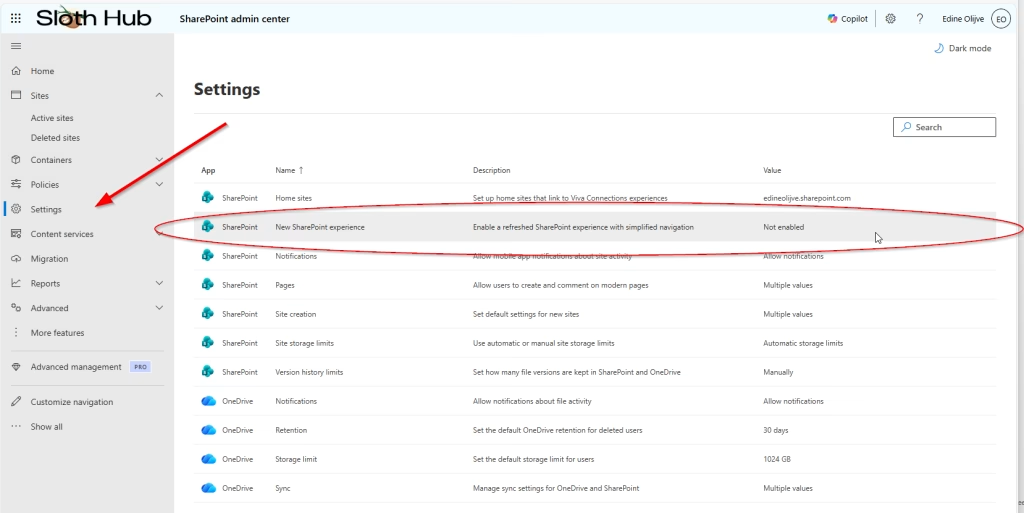
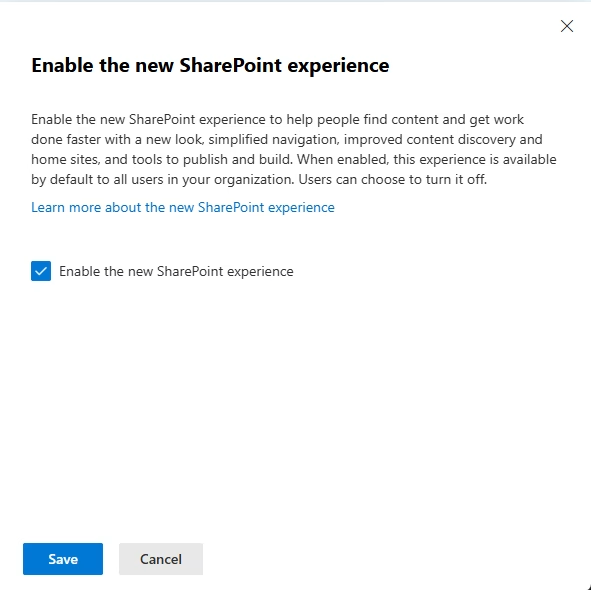
In the configuration panel, check the opt-in box and select Save.
Give your tenant a few hours to apply this change. Note that even if the SharePoint app bar was previously disabled via PowerShell or admin settings, enabling this experience will re-enable the updated app bar across all sites. You can flip between the switch to switch the experience on or off. Keep in mind that this change counts for your entire SharePoint environment, you cannot enable this for selected sites. If you want to opt-out, simply switch the setting back off in the SharePoint admin center.
Stay tuned for a blog on each of the new or modernised features!