
The artist previously known as the Knowledge Agent is now officially called AI in SharePoint. Honestly, I think this name makes more sense. It is much clearer to everyone now that we aren’t quite talking about a full-blown agent, that you can call in other entrypoints like Chat, but rather extra AI capabilities that help us manage our SharePoint sites, pages, and news.
The only downside, at least for those of us here in Europe, is a specific part of the message that recently appeared in the Microsoft 365 message center.
Important notice about model usage and admin controls
AI in SharePoint’s refreshed experience uses an Anthropic reasoning model to support advanced, multi-step planning and execution. In some regions, tenant admins may need to allow Anthropic as a sub processor for Microsoft Online Services for these new capabilities to work.
AI in SharePoint’s refreshed experience uses an Anthropic reasoning model. The catch is that Anthropic is currently not compliant with the EU Data Boundary.
In our region, this means the feature is off by default. To get it working, a tenant admin must allow Anthropic as a sub-processor for Microsoft Online Services. This is a bit of an “all or nothing” situation: you can only enable Anthropic for your entire tenant and every single user. This also means that after enabling it the agents in M365 Copilot for Word, Excel, PowerPoint become visible and the models can be selected in Copilot Studio. It’s not just for SharePoint. If you already opted into the Knowledge Agent Public Preview but haven’t enabled these Anthropic models, you will soon see an error message when trying to use AI in SharePoint.
Anthropic models deployed in Microsoft offerings (including Microsoft 365 Copilot, Researcher, Copilot Studio, Power Platform, Agent Mode in Excel, and Word, Excel, and PowerPoint agents) are currently excluded from the EU Data Boundary, and when applicable, in-country processing commitments. Customers within the EU Data Boundary and customers in the UK will have Anthropic models disabled by default. Anthropic models aren’t currently available for use in government clouds (GCC, GCC High, DoD) or sovereign clouds.
https://learn.microsoft.com/en-us/copilot/microsoft-365/connect-to-ai-subprocessor
From this point onwards, I will assume that you are allowed to use Anthropic models or that you are using a non-production tenant to try out these new features.
Technical Requirements
Before we look at the PowerShell side of things, let’s check the prerequisites:
- Licensing: You need a Copilot license to use the AI in SharePoint features.
- Anthropic enabled: This must be toggled on in the admin center.
- Permissions: You need SharePoint admin to enable the AI features and global admin to approve the Anthropic models.
Enabling Anthropic Models
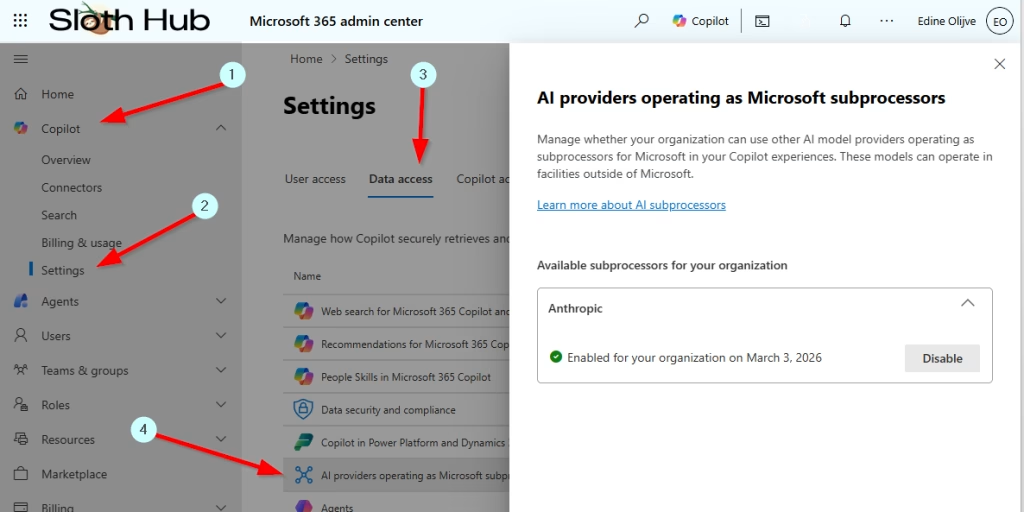
As global admin, head over to the Microsoft 365 Admin Center. Go to Copilot > Data Access and find the AI providers operating as Microsoft subprocessors option. Reminder: enabling this enables this for your entire tenant and every service.
Configuring AI in SharePoint
To enable these features, we will need to use PowerShell and the SharePoint Online shell. This requires at least SharePoint administrator role.
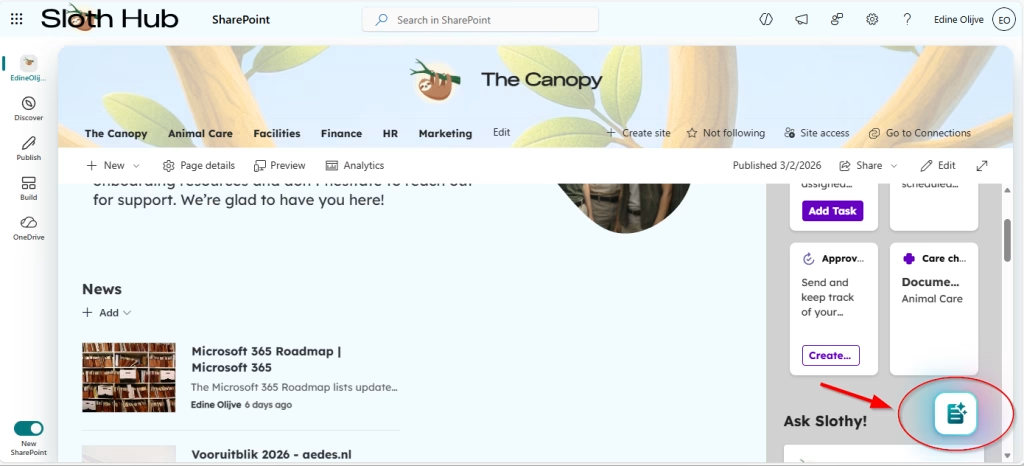
If you see the floating button in the bottom right corner you’ll know the AI features have been enabled.
Enable for all sites
If you want to go full speed ahead and enable these capabilities for every site in your tenant (do not do this in production) use the following:
PowerShell
# Connect to SharePoint Online admin center
Connect-SPOService https://<tenantname>-admin.sharepoint.com

# Enable AI in SharePoint for all sites in the tenant
Set-SPOTenant -KnowledgeAgentScope AllSites

# Verify the configuration
Get-SPOTenant | Select-Object KnowledgeAgentScope
Enable for specific sites
If you prefer a more controlled approach, you can limit the AI features to a specific list of sites.
PowerShell
# Connect to SharePoint Online admin center
Connect-SPOService https://<tenantname>-admin.sharepoint.com

# Set AI in SharePoint to be available only on the included sites
Set-SPOTenant -KnowledgeAgentScope IncludeSelectedSites

# Specify sites to enable (initial inclusion list)
Set-SPOTenant -KnowledgeAgentSelectedSitesList @("https://<tenantname>.sharepoint.com/sites/testsite1", "https://<tenantname>.sharepoint.com/sites/testsite2", "https://<tenantname>.sharepoint.com/sites/testsite3")

# Add additional sites to the list later if needed
Set-SPOTenant -KnowledgeAgentSelectedSitesList @("https://<tenantname>.sharepoint.com/sites/testsite6") -KnowledgeAgentSelectedSitesListOperation Append

# Verify the inclusion configuration
Get-SPOTenant | Select-Object KnowledgeAgentScope, KnowledgeAgentSelectedSitesList
Enable all sites except for specific ones
I wouldn’t suggest using this for production, start testing on a few included sites instead. If you wish to play around with the configuration on a non-production tenant, go ahead and try these out.
PowerShell
# Connect to SharePoint Online admin center
Connect-SPOService https://<tenantname>-admin.sharepoint.com

# Set AI in SharePoint to be available on all sites except selected sites
Set-SPOTenant -KnowledgeAgentScope ExcludeSelectedSites

# Specify sites to exclude
Set-SPOTenant -KnowledgeAgentSelectedSitesList @("https://<tenantname>.sharepoint.com/sites/testsite1", "https://<tenantname>.sharepoint.com/sites/testsite2")

# Add more to the exclusion list if needed
Set-SPOTenant -KnowledgeAgentSelectedSitesList @("https://<tenantname>.sharepoint.com/sites/testsite4") -KnowledgeAgentSelectedSitesListOperation Append

# Verify the exclusion configuration
Get-SPOTenant | Select-Object KnowledgeAgentScope, KnowledgeAgentSelectedSitesList
Disabling the feature
If you need to turn it off completely for the time being, you can do so with this command:
PowerShell
# Connect to SharePoint Online admin center
Connect-SPOService https://<tenantname>-admin.sharepoint.com

# Disable AI in SharePoint for all sites in the tenant
Set-SPOTenant -KnowledgeAgentScope NoSites

# Verify it is disabled
Get-SPOTenant | Select-Object KnowledgeAgentScope
While I do appreciate Microsoft using other models besides OpenAI for specific uses, like the abilitiy to create sites and files, I really wish the change to Anthropic meant that it’s EU Data Boundry compliant. For now, I just hope this means that full support is coming soon.