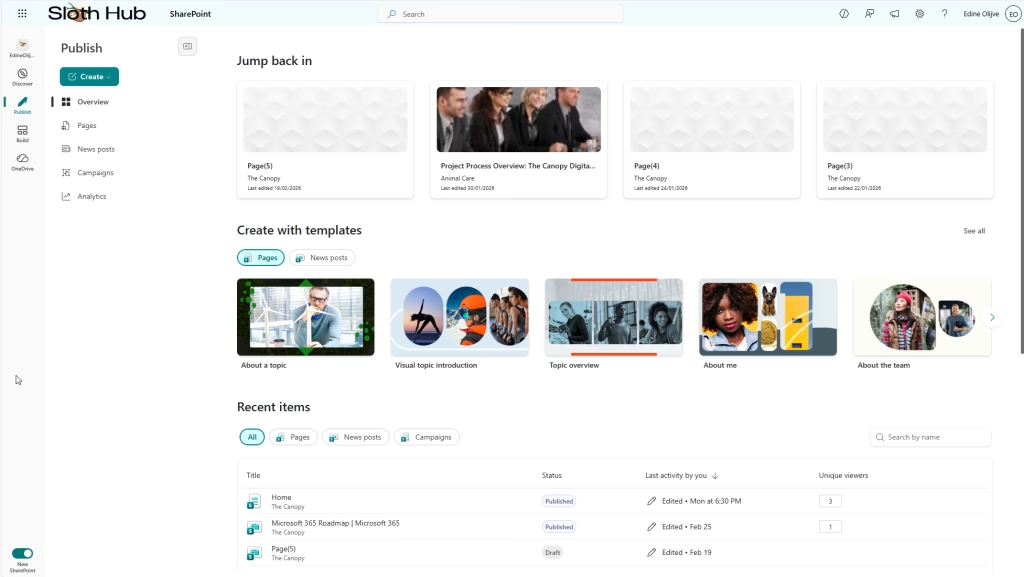
The new Publish tab is quickly becoming one of my favorite features. While it isn’t necessarily a brand new capability, as we could already create news and pages via the “Create” button in the old UI, the actual workflow feels much more intuitive. For a user, using a dedicated “Publish” entry point to start a page or news post just makes sense.
A Centralized Overview
The best thing yet is that we finally get an overview of news and pages across all our sites, all without having to go digging through Site Contents. This was always one of the more difficult things to explain to a communications employee new to SharePoint.
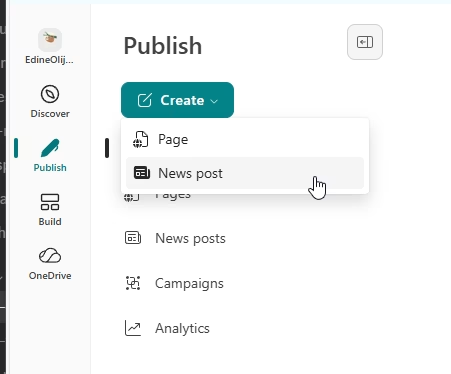
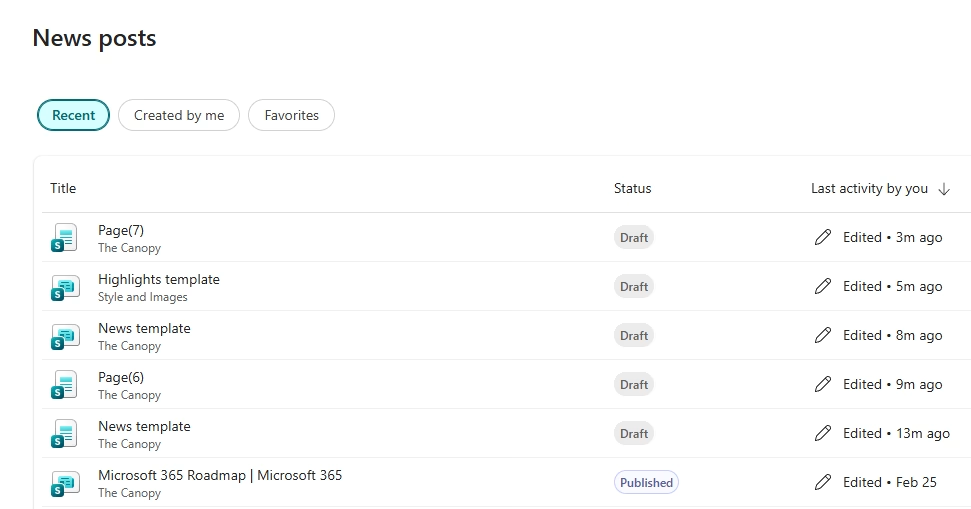
Under the Publish menu, you now find options to create a Page or News post, along with an overview of your existing News, Pages, and even Campaigns if you use Viva Amplify. Best of all, the analytics now span across all sites where you have owner or editor permissions.
Improved Creation Workflow
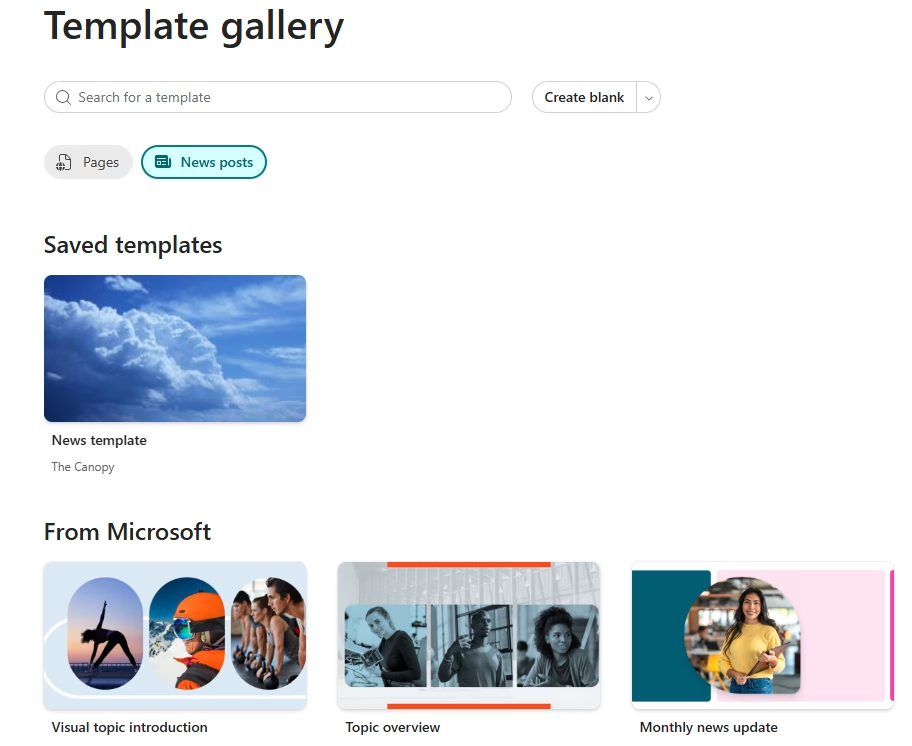
In the old UI, you had to select a site before the editor would even open. The new UI flips this: clicking “Create” takes you directly to the template gallery. You will see both Microsoft templates and your own custom ones.
Currently, only the Microsoft templates are tenant-wide. When you select one, a pop-up window asks which site you want to publish to. This also applies to creating a blank page or a private draft. For your existing custom templates, the UI shows the site name where the template resides and opens it directly there. I am hopeful this shift indicates that tenant-wide custom templates are on the horizon.
Managing Drafts and Content
As I mentioned, the Publish section provides a clear view of all your pages and news posts, including those still in draft form. From this list, you can open the menu to edit, share, copy links, save copies, or delete items.
Have I mentioned yet how much I like this new UI? I’ve lost count of how many times clients have complained about how awkward it is to find news posts in a single overview. Previously, they had to navigate to Site Contents and then into Site Pages, where news and standard pages were all bundled together in a messy list.
Out-of-the-Box Analytics
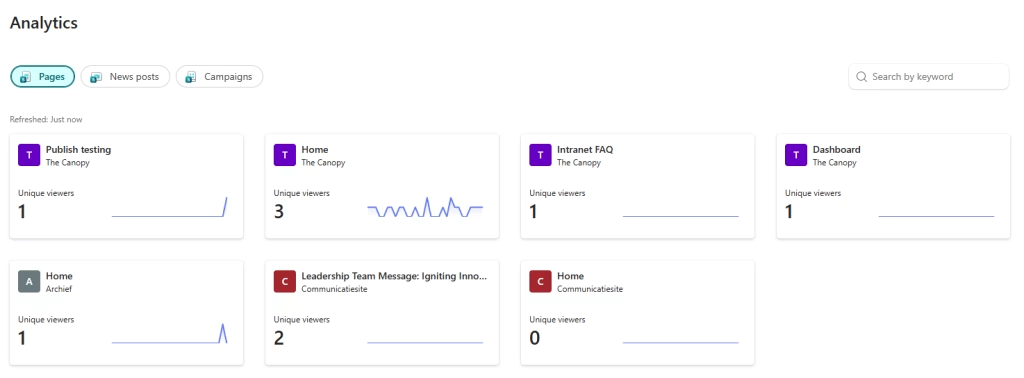
Another feature I have been asked about a lot is having analytics in a quick overview, right out of the box, in an easy to find place. We now have this in the new UI. Under Analytics, you will see all the pages, news posts, or campaigns you have access to view the analytics for. Currently, it only shows the number of viewers; you still have to click on the item to see the full analytics as you would normally. I hope that in the near future you will be able to filter or set the type of analytics you want to see in the overview, as that would be even better!